 LotsAgent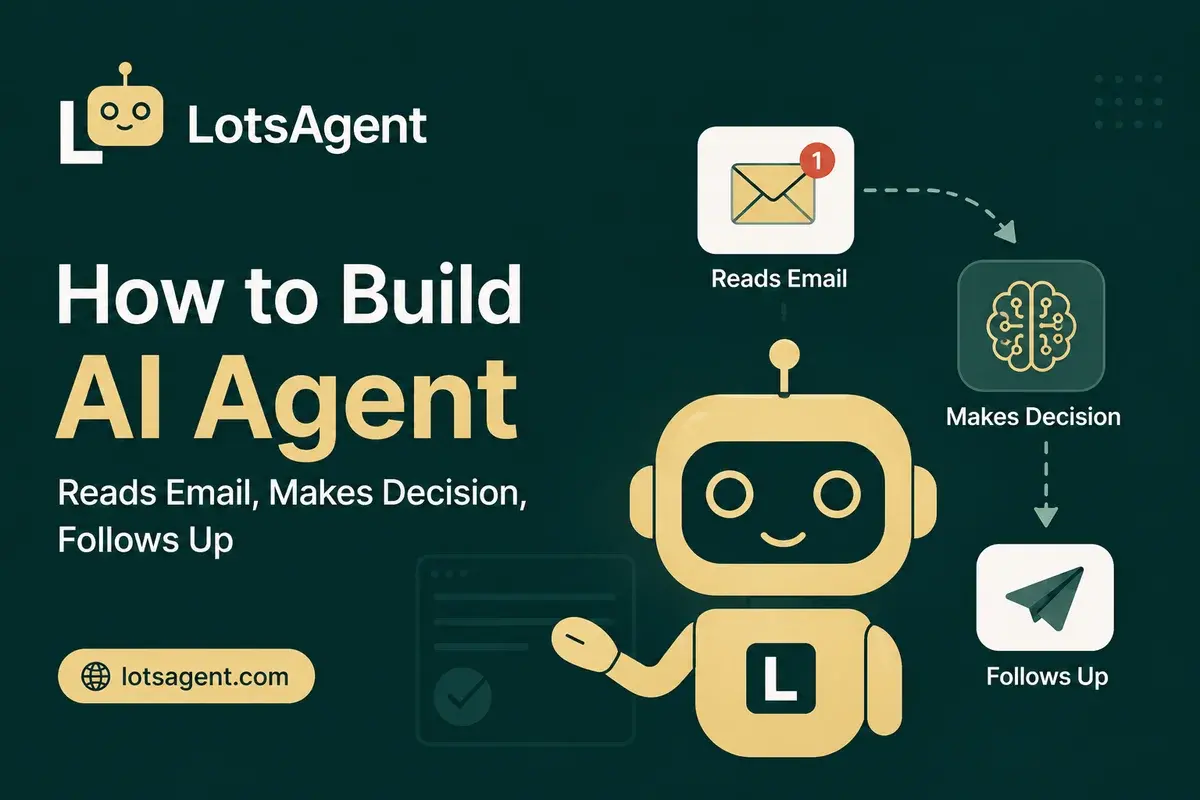
You have an inbox that never stops. Emails arrive from customers, partners, and the team — each with different urgency, different context, different needs. You read them, decide what to do, and follow up. Every day. For hours.
That's the work an AI agent can handle. Not just reading email — the whole thing: understanding what's in each message, deciding what action makes sense, and following through. Here's what that looks like and how to build it.
The Workflow: Email → Decision → Follow-Up
The goal is an agent that:
- Reads incoming email and understands the context
- Decides what action to take based on the content and your rules
- Follows up — drafts a response, creates a task, routes to the right person
The agent doesn't just move emails around. It works toward outcomes: resolved customer issues, captured leads, flagged urgent items, followed-up meetings.
Step 1: Define What the Agent Should Handle
Before configuring anything, answer this question: what does the agent see in your inbox, and what should it do with each type?
Common patterns:
Lead capture
- Email from a new contact → check if they're in your CRM, draft a reply, route high-value leads to your sales inbox
Customer support triage
- Email from a customer → categorize by issue type, check account history, draft an initial response, flag urgent items for immediate review
Internal routing
- Email from the team → read the content, determine urgency, forward to the right person or create a task
Meeting scheduling
- Email with a scheduling request → check your calendar, propose a time, confirm the meeting
Start with one workflow. Don't try to handle every email type from day one.
Step 2: Configure the Agent's Tools
The agent needs access to your email and whatever other systems it needs to make decisions.
Required:
- Gmail (email read/write access)
Common additions:
- CRM (to check customer records, update contact info)
- Calendar (to check availability, schedule meetings)
- Task tool (to create follow-up tasks)
- Knowledge base (to pull relevant information for responses)
In LotsAgent, you connect these tools via the dashboard. The Agent Builder helps configure what the agent can access and what actions it can take. Tools are configured once and the agent uses them across every channel it runs on.
Step 3: Set the Decision Rules
This is where most teams over-engineer. Start simple.
Define the decision logic as a series of questions:
- Is this a new customer inquiry? → Draft a response using your templates
- Is the subject line about billing or cancellation? → Flag for immediate review
- Is the sender a known lead in the CRM? → Score them and route to sales
- Does the email mention a deadline? → Create a follow-up task
You don't need to pre-define every scenario. The agent evaluates context and decides on an approach. But you do need to give it clear priorities and boundaries.
One thing to keep in mind: agents that run across multiple channels need to handle interruptions and retries gracefully. What Durable Execution Actually Means for AI Agents covers how checkpointing ensures the agent picks up where it left off if something fails mid-workflow — not from scratch.
Step 4: Configure Human Review Steps
The agent shouldn't send everything automatically. Configure review steps for actions that matter:
- Auto-send: Triage, categorization, internal routing, non-customer responses
- Human approval: External customer responses, CRM updates, schedule changes
Every action is logged. You see what the agent did, when, and why. You can correct it and the agent learns.
Before you run the agent unattended, run through The 30-Minute AI Agent Audit to check your review rules, tool permissions, and decision boundaries.
Step 5: Multi-Channel Deployment
One of the key advantages of an agent over a simple rule is that it runs everywhere from the same setup.
Email: The agent has its own inbox. It reads incoming emails and acts on them.
Telegram: Get a message when the agent flags something urgent or needs approval. Reply to approve or redirect.
API/Webhooks: Other tools can trigger the agent. A new form submission, a CRM update, a calendar event — all can start an agent workflow. For programmatic access, the MCP (Model Context Protocol) specification provides a standardized way for agents to connect to business tools and data sources.
You configure once. The agent works across every channel from the same configuration.
What the Agent Actually Does
Here's a real example of what this workflow looks like:
Morning: Your agent reads 30 emails from the night. It categorizes them:
- 12 customer inquiries → drafted responses, ready for your review
- 8 internal messages → forwarded to the right people
- 5 leads → scored, CRM updated, routed to sales
- 3 urgent items → flagged in Telegram for immediate attention
You start your day with a summary. You review the drafted responses, approve the ones that look right, and spend your time on the items that actually need you — not the email triage.
The Setup in Practice
On LotsAgent, here's what the configuration looks like:
Create the agent: "An inbox management agent that reads incoming emails, categorizes by type, drafts appropriate responses, and routes high-priority items to the right people. Flag anything about billing, cancellation, or escalation."
Connect tools: Gmail for email, CRM for customer records, Telegram for notifications.
Set review rules: Auto-send internal routing. Require approval for customer-facing responses over 100 words.
Deploy: The agent runs from the same setup across email, Telegram, and API.
That's it. The agent handles the triage. You handle the decisions that actually need you.
Why This Works When Zapier Doesn't
When Zapier Isn't Enough, the practical difference is this: Zapier works for email triggers — new email arrives, do something. But it's a one-way trigger. When X happens, do Y. It doesn't read the email, understand it, or decide what to do.
An agent reads the content, evaluates context, and acts accordingly. When the right action depends on what's in the email — not just that an email arrived — you need an agent that can reason across the work.
Create your first agent free at lotsagent.com.
FAQ: Building an Email Agent That Decides and Follows Up
How does the agent know what to do with each email?
You configure decision rules when setting up the agent. The agent evaluates context — subject, sender, content — and decides on an approach based on your priorities. Start with one workflow (lead capture, support triage, etc.) and expand from there. The agent handles context-dependent decisions; you handle edge cases.
What's the difference between this and an email filter or rule?
Email filters trigger on conditions (sender, subject line, keywords). The agent reads the content, understands context, and decides on an action. If the right response depends on what's in the email — not just that an email arrived — you need an agent.
What happens when the agent makes a wrong decision?
You see every action in the execution log. If the agent routes something incorrectly or drafts a response that doesn't fit, you correct it and the agent learns. For sensitive actions, you configure approval steps so the agent flags items for your review before sending.
Can the agent handle customer support emails automatically?
The agent can draft responses, categorize issues, and route to the right person. For most teams, the practical setup is: agent drafts, human reviews and approves before anything goes to the customer. This gives you the efficiency of automation with the control of human review.
How long does it take to set up an email agent?
Most teams have a working agent within the same day. The Agent Builder creates the initial configuration from a plain-English description. You connect your tools, set review rules, and deploy. The agent runs from the same setup across email, Telegram, and API.
Can the agent send emails automatically or does everything need review?
You decide. Configure auto-send for internal routing, categorization, and low-risk responses. Require approval for customer-facing communications, CRM updates, and anything that could be difficult to undo. Every action is logged regardless.